Best Android Tricks 2025: 15 Hidden Features You Didn't Know About
Discover 15 amazing Android hidden features and tricks for 2025. Learn device compatibility, step-by-step guides, and secret shortcuts to unlock your phone's full potential.
Table of Contents
Your Android phone is packed with incredible hidden features that most people never discover. Whether you’re using a Samsung Galaxy, Google Pixel, OnePlus, or any other Android device, these Android tricks 2025 will transform how you use your smartphone.
In this comprehensive guide, we’ll reveal 15 hidden Android features that will make you feel like a tech expert. Each trick includes device compatibility information, so you’ll know exactly which features work on your specific phone.
Why These Android Hidden Features Matter
Before diving into the tricks, here’s why learning these features is worth your time:
- Boost productivity by 40% with smart shortcuts
- Save battery life with hidden power management tools
- Enhance security using built-in privacy features
- Customize your experience beyond basic settings
- Impress friends with cool phone tricks
Let’s unlock your Android’s true potential!
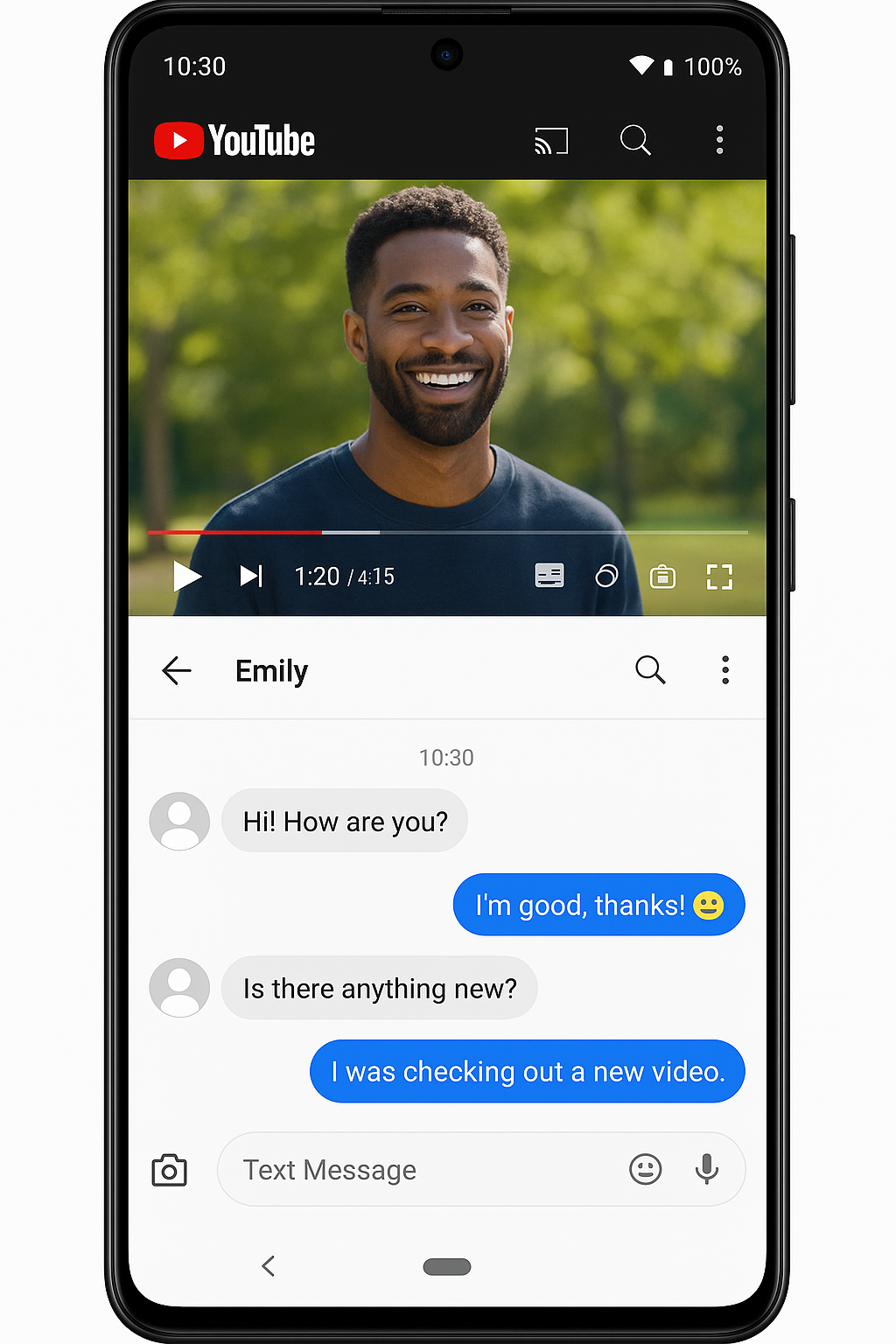
1. Split Screen Mode for Ultimate Multitasking
What it does: Run two apps simultaneously on your screen Device Compatibility:
- ✅ Samsung Galaxy (S8 and newer)
- ✅ Google Pixel (all models)
- ✅ OnePlus (6 and newer)
- ✅ Xiaomi (MIUI 9+)
- ✅ Most Android 7.0+ devices
How to Enable Split Screen:
Method 1: Recent Apps Button
- Open the first app you want to use
- Tap the Recent Apps button (square icon)
- Find your app and tap the app icon at the top
- Select “Split screen” or “Open in split screen view”
- Choose the second app from the list
Method 2: Long Press (Samsung)
- Open any app
- Long press the Recent Apps button
- Your screen will automatically split
- Select the second app
Pro Tip: Perfect for watching YouTube while texting or taking notes during video calls!
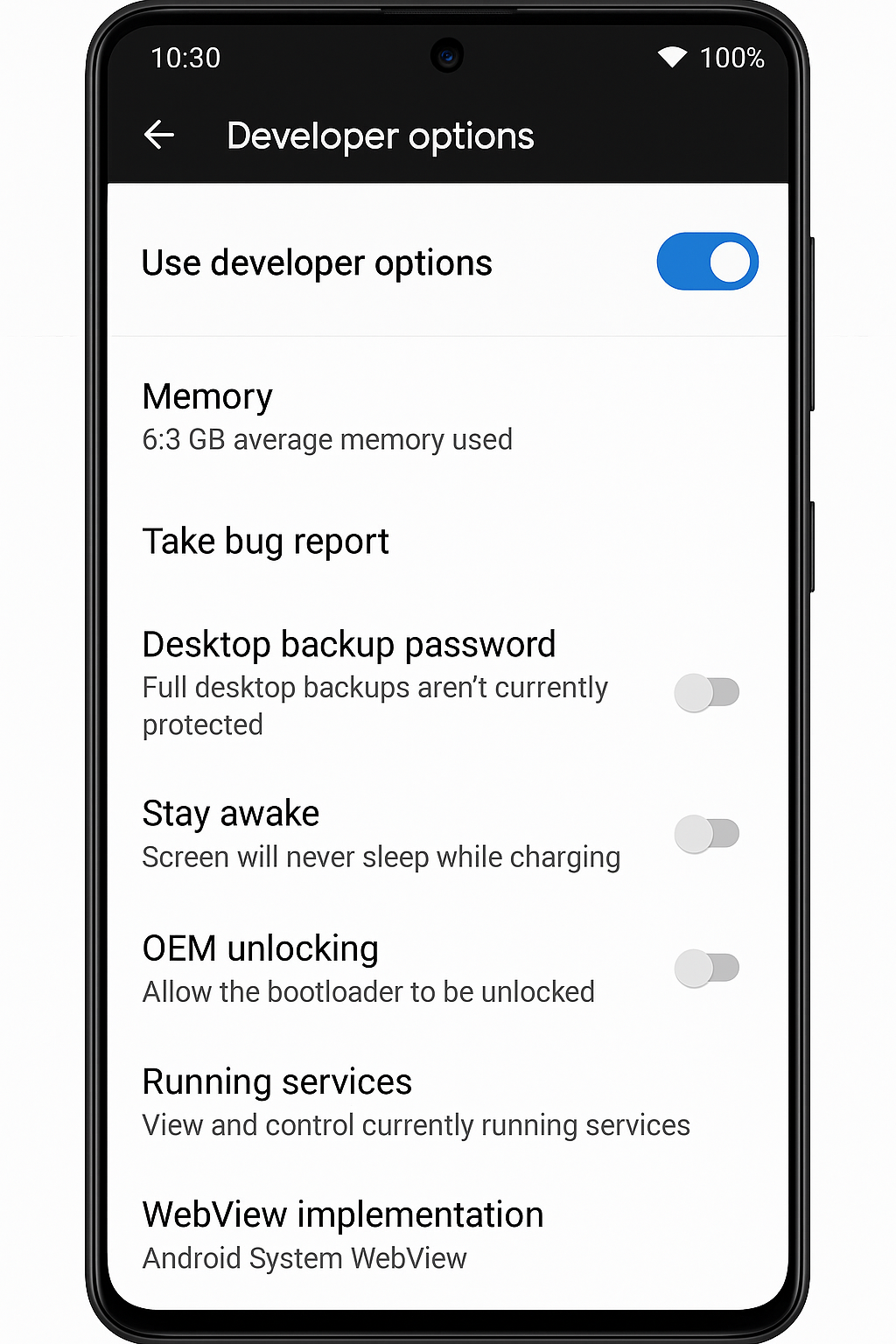
2. Secret Developer Options Menu
What it does: Unlocks advanced settings and debugging tools Device Compatibility:
- ✅ All Android devices (hidden by default)
- ⚠️ Some features may vary by manufacturer
How to Unlock Developer Options:
- Go to Settings > About Phone
- Find “Build Number” (may be under Software Information)
- Tap 7 times quickly on Build Number
- You’ll see “You are now a developer!” message
- Go back to Settings - you’ll see “Developer Options”
Best Developer Options to Try:
- Animation Scale: Set to 0.5x for faster animations
- Force 4x MSAA: Improve graphics quality (uses more battery)
- Show CPU Usage: Monitor performance in real-time
- USB Debugging: Enable advanced computer connectivity
Warning: Only change settings you understand!
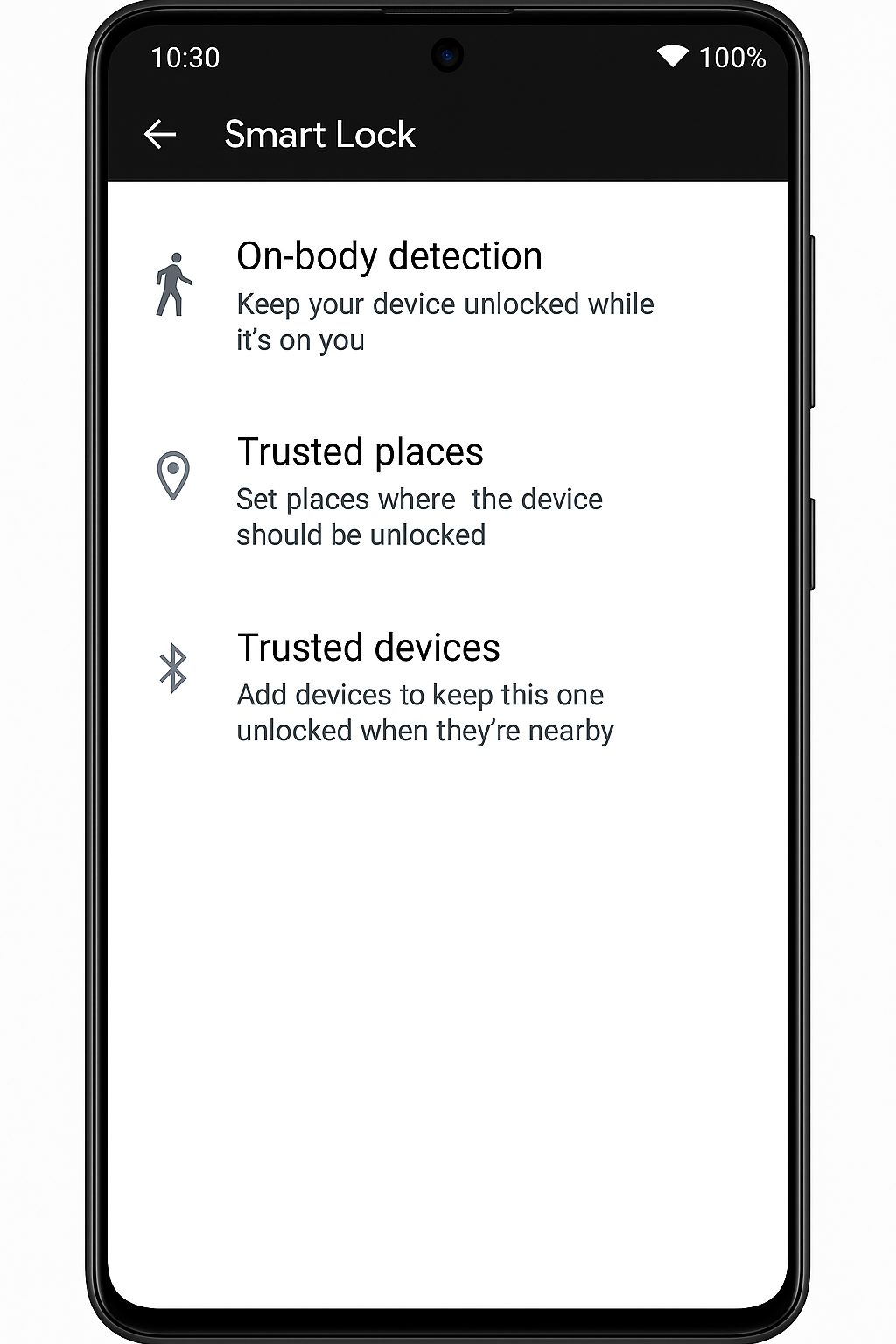
3. Smart Lock - Keep Your Phone Unlocked Safely
What it does: Automatically unlocks your phone in trusted situations Device Compatibility:
- ✅ Android 5.0+ (all brands)
- ✅ Works with fingerprint, face unlock, and PIN
Smart Lock Options:
Trusted Places
- Set home, work, or gym as trusted locations
- Phone stays unlocked when you’re there
- Uses GPS for location detection
Trusted Devices
- Connect to your car’s Bluetooth, smartwatch, or headphones
- Phone unlocks automatically when connected
On-Body Detection
- Keeps phone unlocked while you’re carrying it
- Locks when you put it down
Setup Instructions:
- Settings > Security > Smart Lock
- Enter your PIN/password
- Choose your preferred Smart Lock type
- Follow the setup wizard
4. Guest Mode and Multiple User Profiles
What it does: Create separate user accounts on one phone Device Compatibility:
- ✅ Google Pixel (all models)
- ✅ Stock Android devices
- ❌ Samsung Galaxy (removed in One UI)
- ✅ OnePlus (some models)
- ⚠️ Varies by manufacturer
How to Set Up Multiple Users:
- Settings > System > Multiple Users
- Tap “Add User” or “Add Guest”
- Choose “User” for permanent account or “Guest” for temporary
- Set up the new profile with separate apps and data
Benefits:
- Let kids use your phone safely
- Keep work and personal data separate
- Lend your phone without privacy concerns
5. One-Handed Mode for Large Phones
What it does: Shrinks the screen for easier one-handed use Device Compatibility:
- ✅ Samsung Galaxy (One UI 2.0+)
- ✅ Google Pixel (Android 12+)
- ✅ OnePlus (OxygenOS 11+)
- ✅ Xiaomi (MIUI 12+)
Samsung One-Handed Mode:
- Settings > Advanced Features > One-Handed Mode
- Enable the feature
- Swipe down from the bottom edge to activate
Google Pixel One-Handed Mode:
- Settings > System > Gestures > One-handed mode
- Turn on the feature
- Swipe down on the gesture bar to activate
6. Hidden Screen Recording Feature
What it does: Record your screen without third-party apps Device Compatibility:
- ✅ Android 11+ (all devices)
- ✅ Samsung Galaxy (Android 10+)
- ✅ OnePlus (OxygenOS 10+)
- ✅ Xiaomi (MIUI 11+)
How to Access Screen Recording:
Method 1: Quick Settings
- Swipe down twice to open Quick Settings
- Look for “Screen Record” tile
- If not visible, tap “Edit” and add it
- Tap to start recording
Method 2: Power Button Menu (Android 11+)
- Hold Power + Volume Up buttons
- Select “Screenshot” then “Screen Record”
Recording Options:
- Record audio from microphone
- Show touches on screen
- Choose video quality (720p, 1080p)
7. App Cloning for Dual Accounts
What it does: Run two instances of the same app Device Compatibility:
- ✅ Samsung Galaxy (Dual Messenger)
- ✅ OnePlus (Parallel Apps)
- ✅ Xiaomi (Dual Apps)
- ✅ Huawei (App Twin)
- ❌ Google Pixel (not built-in)
Samsung Dual Messenger:
- Settings > Advanced Features > Dual Messenger
- Select apps you want to clone
- Toggle on the apps (WhatsApp, Instagram, etc.)
OnePlus Parallel Apps:
- Settings > Apps > Parallel Apps
- Choose apps to clone
- Enable parallel app creation
Benefits:
- Use two WhatsApp accounts
- Separate work and personal social media
- Multiple gaming accounts
8. Smart Text Selection and Actions
What it does: AI-powered text recognition and quick actions Device Compatibility:
- ✅ Google Pixel (all models)
- ✅ Samsung Galaxy (S9+)
- ✅ Android 8.0+ with Google services
How to Use Smart Text Selection:
- Long press any text in photos, screenshots, or apps
- Android automatically detects:
- Phone numbers (tap to call)
- Addresses (tap to navigate)
- Email addresses (tap to compose)
- URLs (tap to open)
Advanced Features:
- Copy text from images using Google Lens
- Translate text in real-time
- Search for selected text instantly
9. Notification Channels for Better Control
What it does: Fine-tune notifications for each app category Device Compatibility:
- ✅ Android 8.0+ (all devices)
- ✅ Works with all apps that support channels
How to Manage Notification Channels:
- Long press any notification
- Tap “All Categories” or gear icon
- You’ll see different notification types for that app
- Customize each category:
- Turn on/off
- Change importance level
- Set custom sounds
- Control vibration
Example - WhatsApp Channels:
- Messages (high priority)
- Group notifications (medium priority)
- Security notifications (high priority)
- Backup notifications (low priority)
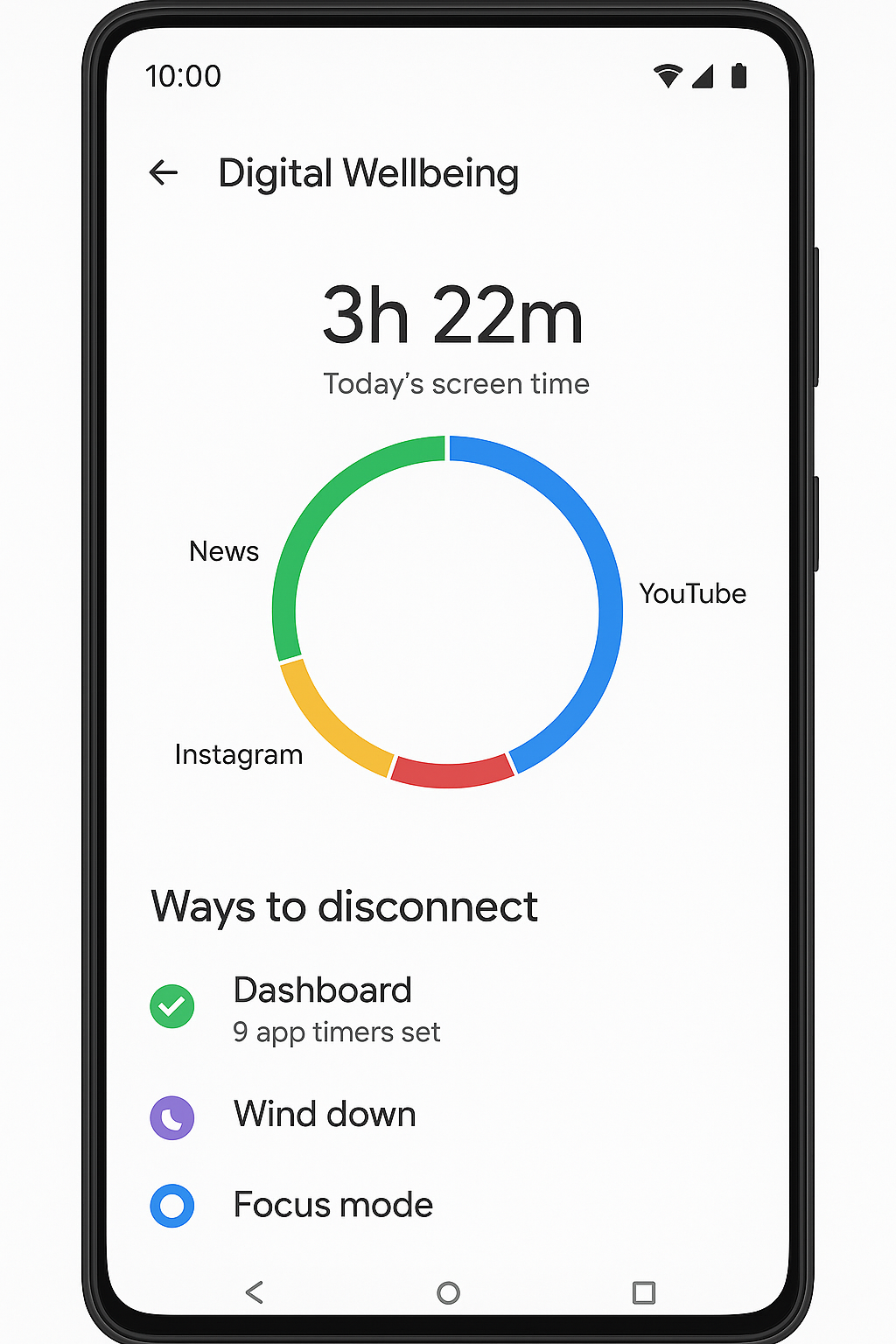
10. Digital Wellbeing and Focus Mode
What it does: Help you manage screen time and stay focused Device Compatibility:
- ✅ Android 9.0+ (most devices)
- ✅ Samsung Galaxy (Digital Wellbeing)
- ✅ OnePlus (Zen Mode)
Setting Up Focus Mode:
- Settings > Digital Wellbeing & Parental Controls
- Tap “Focus Mode”
- Select distracting apps to pause
- Set schedule or activate manually
Features:
- App timers: Limit daily usage
- Wind down: Prepare for bedtime
- Focus mode: Block distracting apps
- Usage insights: See detailed statistics
11. Gesture Navigation Shortcuts
What it does: Navigate your phone without buttons Device Compatibility:
- ✅ Android 10+ (all devices)
- ✅ Custom gestures vary by manufacturer
Basic Gesture Navigation:
- Swipe up from bottom: Go home
- Swipe up and hold: Recent apps
- Swipe from left/right edge: Go back
- Swipe down from top: Notifications
Advanced Gestures (Samsung):
- Double tap back: Screenshot
- Palm swipe: Screenshot
- Three finger swipe down: Multi-window
OnePlus Gestures:
- Draw O: Open camera
- Draw V: Flashlight
- Draw M: Music player
12. Adaptive Battery and App Optimization
What it does: AI learns your usage patterns to save battery Device Compatibility:
- ✅ Android 9.0+ with AI features
- ✅ Google Pixel (best implementation)
- ✅ Samsung Galaxy (Adaptive Battery)
How to Enable:
- Settings > Battery > Adaptive Battery
- Turn on “Adaptive Battery”
- Enable “Adaptive Charging” (if available)
What It Does:
- Limits background activity for rarely used apps
- Optimizes CPU performance based on usage
- Learns your charging patterns
- Predicts when you’ll need your phone most
13. Live Caption for Accessibility
What it does: Automatically caption any audio on your device Device Compatibility:
- ✅ Google Pixel (Android 10+)
- ✅ Samsung Galaxy (Android 11+)
- ✅ OnePlus (OxygenOS 11+)
- ⚠️ Requires device with sufficient processing power
How to Enable Live Caption:
- Settings > Accessibility > Live Caption
- Turn on “Live Caption”
- Captions will appear for:
- Videos (YouTube, Netflix, etc.)
- Audio messages
- Phone calls
- Podcasts
Customization Options:
- Change caption size and style
- Hide profanity
- Show sound labels (music, applause, etc.)
14. Quick Settings Customization
What it does: Personalize your notification panel shortcuts Device Compatibility:
- ✅ All Android devices (methods may vary)
How to Customize Quick Settings:
- Swipe down twice to open full Quick Settings
- Tap “Edit” or pencil icon
- Drag and drop tiles to rearrange
- Add new tiles from the available options
Useful Hidden Tiles:
- Screen Record
- Focus Mode
- One-handed mode
- QR Code Scanner
- Nearby Share
Pro Tips:
- Put most-used tiles at the top
- Remove tiles you never use
- Some apps add their own quick tiles
15. Nearby Share - Android’s AirDrop
What it does: Share files wirelessly with nearby Android devices Device Compatibility:
- ✅ Android 6.0+ with Google Play Services
- ✅ All major Android brands
How to Use Nearby Share:
Setup:
- Settings > Google > Device connections > Nearby Share
- Turn on Nearby Share
- Set visibility (All contacts, Some contacts, Hidden)
Sharing Files:
- Open any file, photo, or link
- Tap “Share”
- Select “Nearby Share”
- Choose the nearby device
- Recipient accepts the transfer
What You Can Share:
- Photos and videos
- Documents and files
- Website links
- Contact information
- App links
Device-Specific Bonus Features
Samsung Galaxy Exclusive Features:
- S Pen functionality (Note series)
- Samsung DeX (desktop mode)
- Edge Panels (quick app access)
- Bixby Routines (automation)
Google Pixel Exclusive Features:
- Call Screen (AI answers calls)
- Car Crash Detection
- Hold for Me (wait on hold automatically)
- Magic Eraser (remove objects from photos)
OnePlus Exclusive Features:
- Zen Mode (digital detox)
- Gaming Mode (performance optimization)
- Alert Slider (hardware mute switch)
Conclusion: Master Your Android Device
These 15 hidden Android features will transform how you use your smartphone in 2025. From productivity boosters like split-screen mode to accessibility features like Live Caption, your Android device has incredible capabilities waiting to be discovered.
Key Takeaways:
- Most features work on Android 8.0+ devices
- Samsung, Google Pixel, and OnePlus have the most advanced features
- Many tricks are hidden in settings - explore your phone!
- Developer Options unlock advanced customization
- Regular updates bring new hidden features
What’s Next?
Start with the features that match your device and needs. Try one new trick each day, and you’ll be an Android expert in no weeks!
Which Android trick surprised you the most? Try these features and let us know which ones work best on your device.
Want more Android tips? Check out our guides on Android dialer updates and productivity apps for Android users.